In this article
- 7 Server Backup Checks Every Website Owner Should Perform
- 1. Check Backup Logs and Completion Status
- 2. Verify Backup File Integrity
- 3. Perform a Test Restore in a Separate Environment
- 4. Verify Database Recovery
- 5. Test Website and Application Functionality
- 6. Measure Recovery Time and Data Loss
- How Often Should You Test Dedicated Server Backups?
- Common Backup Testing Mistakes to Avoid
- How the Right Dedicated Server Hosting Helps with Backup and Recovery
- Last Words
- Frequently Asked Questions
- 1. How do I know if my dedicated server backup is working?
- 2. What should I do if my backup fails to restore?
- 3. Can I test backups without affecting my live website?
- 4. How often should I test dedicated server backups?
- 5. Why is my backup missing recent website data?
Recently, one of the common concerns our Hostsoch support team receives from website owners is related to unexpected data loss, missing website files, and failed data recovery. Many website owners assume that their data is automatically backed up and can be restored whenever needed.
A backup that runs successfully doesn’t always mean your data is safe or recoverable. Missing files, corrupted backup copies, or incomplete databases can leave you facing unexpected data loss when you need your backup the most.
Whether you’re running a business website, an eCommerce store, or a web application, dedicated server backup testing is essential to ensure your data can be recovered when something goes wrong. This guide will help you understand how to verify your backups, test data recovery, and avoid common backup mistakes before you face a data loss situation.
Read on to discover our expert strategies for ensuring your dedicated server backups actually work when you need them.
7 Server Backup Checks Every Website Owner Should Perform
1. Check Backup Logs and Completion Status
If your server uses cPanel, check the Backup interface to confirm that backup files are available and include your website files and databases., You can also review cPanel backup logs to identify failed or incomplete backup jobs.
Source – cPanel Documentation
2. Verify Backup File Integrity
A backup file may exist on your dedicated server but still contain corrupted, incomplete, or unreadable data. To verify backup file integrity
- Use checksum verification
- Check archive integrity
Source – Google Cloud Data integrity guidelines
3. Perform a Test Restore in a Separate Environment
A backup is only useful if you can restore your data successfully. For dedicated server backup testing, restore your backup to a staging server or isolated environment instead of directly affecting your live website.
- Measure recovery time (RTO): Record how long the restoration takes and compare it with your Recovery Time Objective (RTO), which defines the maximum acceptable downtime.
- Verify the recovery point (RPO): Check the timestamp of the restored data to determine how much data could be lost. Your Recovery Point Objective (RPO) defines the maximum acceptable data loss measured in time.
- Use cPanel or WHM: cPanel’s Backup interface supports restoring website files and databases. For full account backup restoration, WHM or your hosting provider may be required. (Source: cPanel Documentation)
4. Verify Database Recovery
- Restore the database in phpMyAdmin: Import your backup into a separate test database and confirm that the import completes without errors. Check whether important WordPress tables, such as wp_posts, wp_users, and wp_options, are present.
- Check database table integrity: Use MySQL’s CHECK TABLE statement to identify table errors. For example, CHECK TABLE wp_posts; check the specified table for errors.
- Verify database records: Compare restored posts, user accounts, orders, and other important records against the original database or expected backup state.
5. Test Website and Application Functionality
A successful backup restore does not always mean your website is fully functional. You need to verify that the restored files, database, and application components work together correctly. It is important to check links, navigation buttons, and other pages. Test both reading and writing functionality. For example, create a draft post on your restored WordPress website, save it, and reopen it.
6. Measure Recovery Time and Data Loss
Restoring your dedicated server backup is only part of the recovery process. You also need to know how long the recovery takes and how much data your business could lose. Two important metrics used in cloud disaster recovery planning are Recovery Time Objective (RTO) and Recovery Point Objective (RPO).
- Recovery Time Objective (RTO): The maximum acceptable time your website or application can remain unavailable after a failure. During a test restore, record the total recovery time and compare it with your target RTO.
- Recovery Point Objective (RPO): The maximum amount of data loss your business can tolerate, measured in time. Compare the timestamp of your latest recoverable backup with the time of the failure to determine how much data could be lost.
Source – Google Cloud Documentation
How Often Should You Test Dedicated Server Backups?
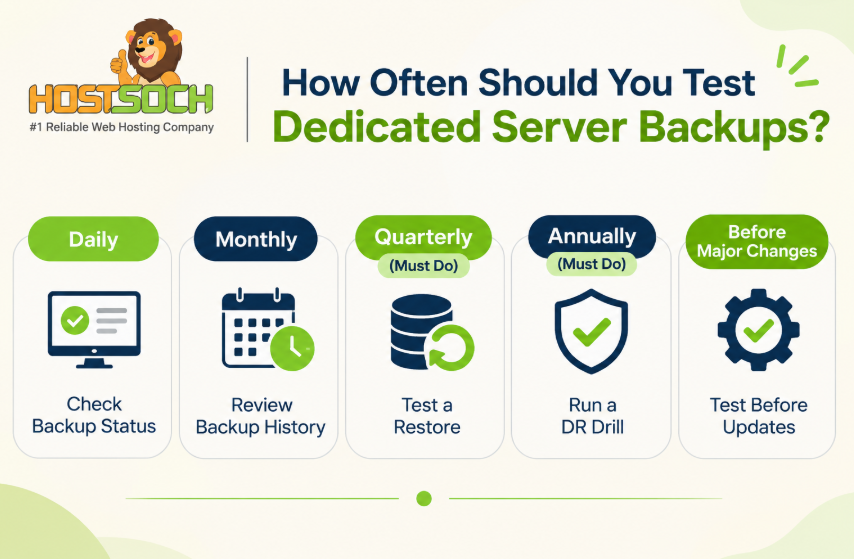
Even if your backup dashboard shows “Completed,” it doesn’t guarantee that your data can be recovered. As a server engineer, I recommend making quarterly and annual backup recovery tests non-negotiable. A backup is only reliable when you have successfully tested its restoration.
- Daily: Monitor backup completion status, logs, and failure alerts to catch issues early.
- Monthly: Review backup history and confirm that the latest successful backup contains the required files and databases.
- Quarterly (non-negotiable): Perform a test restore in an isolated environment and verify website functionality, database integrity, and recovery time.
- Annually (non-negotiable): Conduct a full disaster recovery drill to test your recovery procedures, RTO, RPO, and backup availability.
- Before major changes: Test backups before server migrations, operating system upgrades, or major application updates.
Expert tip: Maintain a record of your last successful backup test, including the drill date, recovery time, and any issues identified. Share this report with your hosting provider so they can help address recovery gaps. Keep your recovery drills focused and time-bound; a short, well-documented test is more useful than a lengthy exercise that never gets completed.
Common Backup Testing Mistakes to Avoid
Recently, one of our clients faced a data recovery issue that was later traced to relying on successful backup job reports without performing actual restore tests. This highlights how easily backup mistakes can go unnoticed until data loss occurs.
Here are some common backup testing mistakes that many website owners make, along with practical solutions to help you avoid them and keep your data recoverable when you need it most.
1. Relying only on successful backup reports: A green status confirms that a job completed, not that the data can be restored.
Solution: Perform regular test restores and maintain a record of the last successful recovery test.
2. Ignoring the 3-2-1 backup rule: Keeping all backup copies on the same server puts your data at risk if the server fails or is compromised.
Solution: Maintain three copies of your data, on two different types of storage, with at least one copy stored offsite.
3. Overlooking SaaS application backups: Backing up your dedicated server does not automatically protect cloud applications such as Microsoft 365, Google Workspace, or hosted CRM platforms.
Solution: Use dedicated SaaS backup solutions and regularly test the recovery of emails, documents, and application data.
4. Ignoring ransomware and malware risks: Backups connected to your production server may also become encrypted or deleted during a ransomware attack.
Solution: Maintain immutable or offline backup copies, restrict backup access, and test recovery from a clean environment.
5. Testing only website files, not databases: A restored website may still lose important customer records, orders, or user information if its database is missing or outdated.
Solution: Restore both website files and databases, then verify their consistency and functionality.
6. Skipping recovery documentation: Even a valid backup can take too long to restore if recovery procedures are unclear.
Solution: Document restoration steps, required credentials, encryption keys, and recovery responsibilities, and review them during quarterly recovery drills.
Expert tip: Don’t judge your backup strategy by how many successful backup jobs you have. Judge it by when you last restored your data successfully, how much data you recovered, and whether the recovery met your RTO and RPO requirements.
How the Right Dedicated Server Hosting Helps with Backup and Recovery
When it comes to backup and recovery, your server infrastructure matters just as much as your backup strategy. The right dedicated server gives you the resources, control, and recovery options needed to protect your business data and minimize downtime. If you’re looking for dedicated server hosting, Hostsoch offers dedicated server solutions with reliable infrastructure and technical support to help you manage your hosting requirements. Here are the key features to look for when choosing a dedicated server for better backup and recovery.
– Dedicated CPU and RAM Resources: Ensure your server has sufficient processing power and memory to handle backup operations and data restoration without affecting website performance.
– Flexible Backup Storage: Choose a server that supports external backup storage or remote backup destinations. Keeping independent copies of your data helps protect against server failure and data loss.
– RAID Storage Configuration: RAID helps maintain availability during certain drive failures, but it should always be combined with independent backups for complete data protection.
– Root Access and Backup Automation: Full root access allows you to configure backup tools, automate backup schedules, and customize recovery procedures according to your requirements.
– Reliable Network Connectivity: A stable, high-bandwidth network helps transfer large backup files and restore data more efficiently, especially when recovering from remote storage.
– 24/7 Technical Support: When backup or recovery issues occur, experienced technical support can help identify the problem and assist with server recovery.
Last Words
The best way to protect your dedicated server data is to test your backups quarterly, follow the 3-2-1 backup rule, and always keep one extra copy of your data in a separate location. Remember, a successful backup report doesn’t guarantee recovery.
Looking for reliable dedicated server hosting? HostSoch offers dedicated server solutions to help you manage your hosting requirements. Explore HostSoch Dedicated Server Hosting and keep your business data protected with a tested backup strategy.
Frequently Asked Questions
1. How do I know if my dedicated server backup is working?
Perform a test restore and verify that your website files, databases, and applications work correctly.
2. What should I do if my backup fails to restore?
Check backup logs for errors, try an earlier backup, and contact your hosting provider if the issue persists.
3. Can I test backups without affecting my live website?
Yes. Restore your backup to a separate staging server or isolated environment.
4. How often should I test dedicated server backups?
Check backup status daily and perform full restore tests quarterly. Conduct a complete disaster recovery drill annually.
5. Why is my backup missing recent website data?
Your backup may be outdated or running less frequently than your data changes. Review your backup schedule and RPO.